
Crewing Manager Guide: Client Approval Request Process
(New Officer Candidate, Promotion, Termination)
This guide explains how Crewing Managers must submit employment-related approval requests to shipowners through Oracle and Argo, ensuring compliance with the requirement that all employment decisions are made by the shipowner.
1. Overview of Approval Requests
Crewing Managers must submit the following requests for client approval:
- Assignement
Note: This approval is only required the first time the officer is introduced to the client and subsequent approvals for the same rank / client are not needed - Promotion Approval
- Termination Approval
All client approvals are processed in Argo, while submissions start from Oracle (Proposal screen) or directly in Argo.
2. Eligibility Rules
A seafarer must meet specific eligibility criteria for the RCA (Request Crew Approval) button to be active in Oracle and Argo
2.1 New Officer Candidate Eligibility
From the Officer Candidate Approval Request Process:
- Must be in Officer Rank Group
- Assigned to a GTT‑flagged vessel
- Status 1, 5, or 6
- A Proposal / Employment Offer must exist
2.2 Promotion Eligibility
From the Promotion Approval Request Process:
- Must be in Officer Rank Group
- Assigned to a GTT‑flagged vessel
- Status 0, 1, 5, or 6
2.3 Termination Eligibility
From the Termination Approval Request Process:
- Must be in Officer Rank Group
- Assigned to a GTT‑flagged vessel
- Status 0
3. Submitting Approval Requests
Requests may be initiated either through Oracle (via the Proposal screen) or directly in Argo.
3.1 Step 1 — Open the Seafarer’s Proposal in Oracle
Navigate to:
Seafarer Profile → Proposal
- If the seafarer is not eligible, the RCA button is inactive.
- If eligible, the RCA button is active and can be selected.
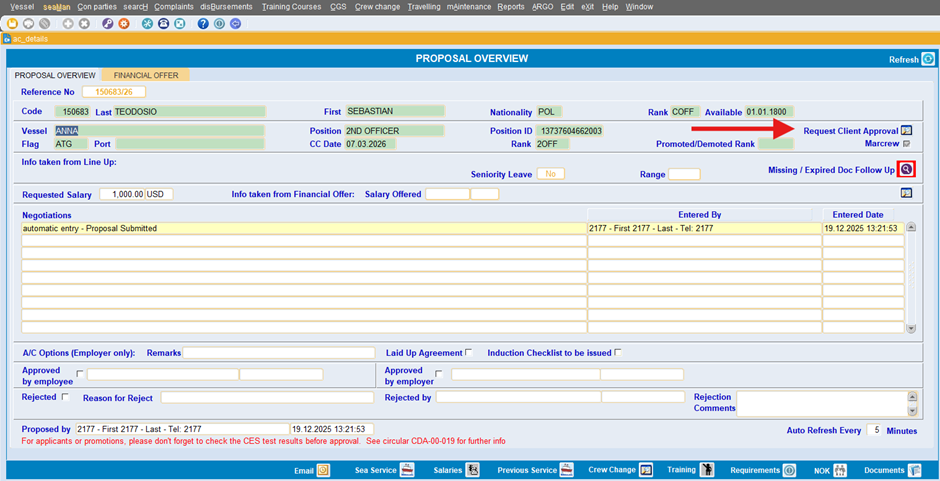
3.2 Step 2 — Redirect to Argo (Crew Approvals)
When you click the RCA button:
- Oracle automatically redirects you to Argo → Crew Approvals,
- The request modal opens pre‑filled with basic details, ready for completion.
You may also bypass Oracle and start directly in Argo → Crew Approvals → New Request.
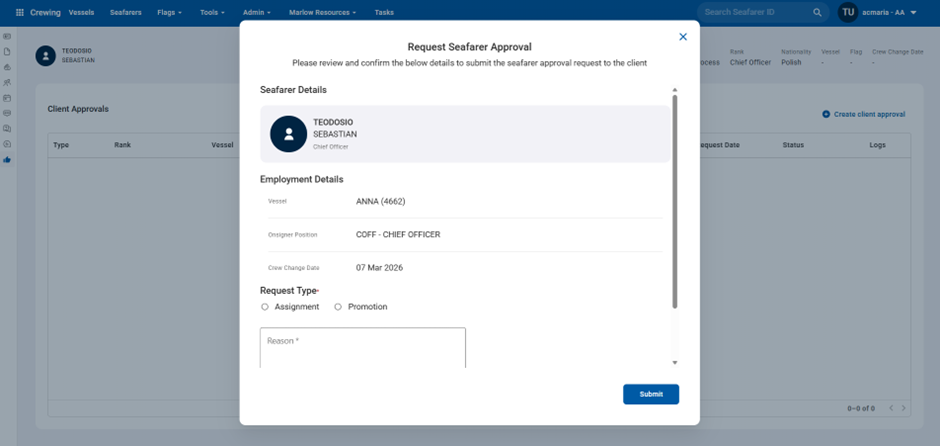
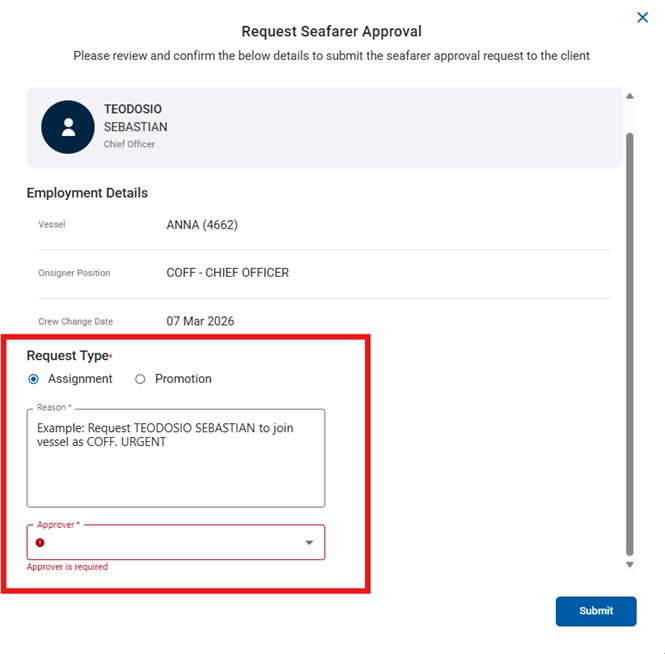
3.3 Step 3 — Complete the Request in Argo
Depending on the request type, enter:
- Effective date
- Rank or new rank (for promotions)
- Reason / justification
- Any additional notes required
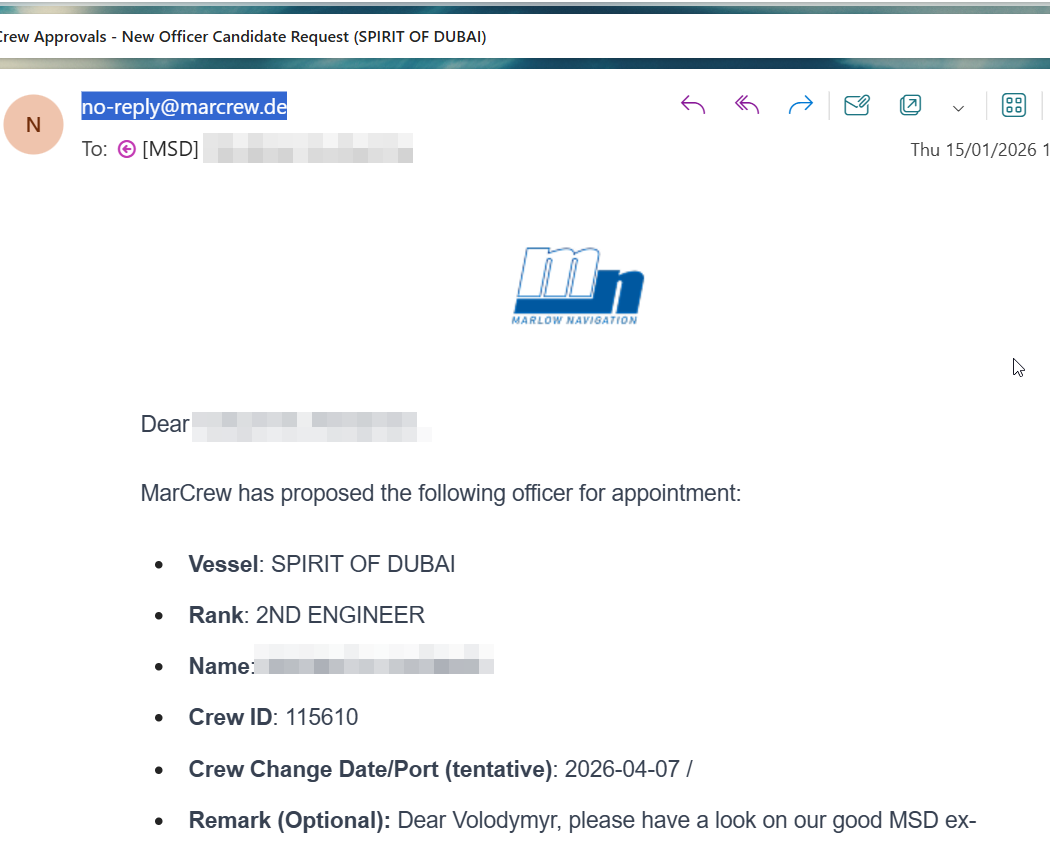
After submission:
- The request appears in the Crew Approvals Grid as Pending
- The client will notified by email. You will receive the email in copy.
- The client will take action via the Client Portal [Help Guide…al Request | Word]
3.4 Step 4 — Status Updates After Client Action
Once the client approves or rejects:
- The status updates to Approved or Rejected in Argo
- Email notifications are automatically sent to all relevant parties
4. Argo Crew Approvals Grid
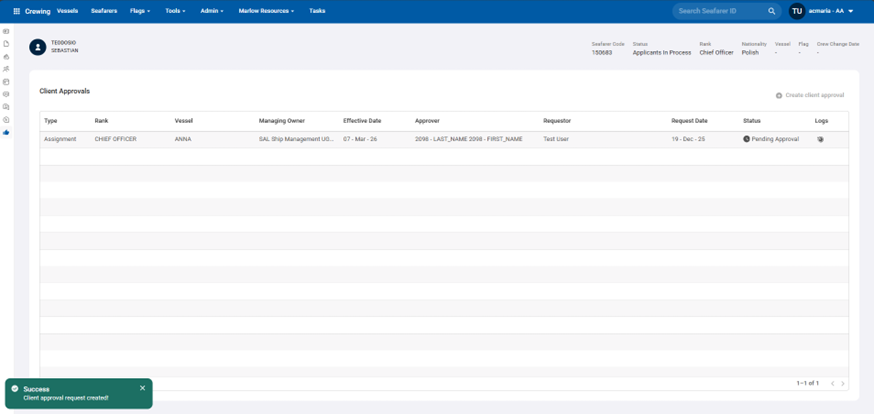
After submission, the request is visible in the Grid with:
- Request type
- Vessel
- Rank
- Date
- Status (Pending / Approved / Rejected)
- History log
This allows you to track and follow up on client decisions.
5. Revoking Requests
Revocation rules differ depending on request type.
5.1 Revoking New Officer Candidate Requests
To revoke:
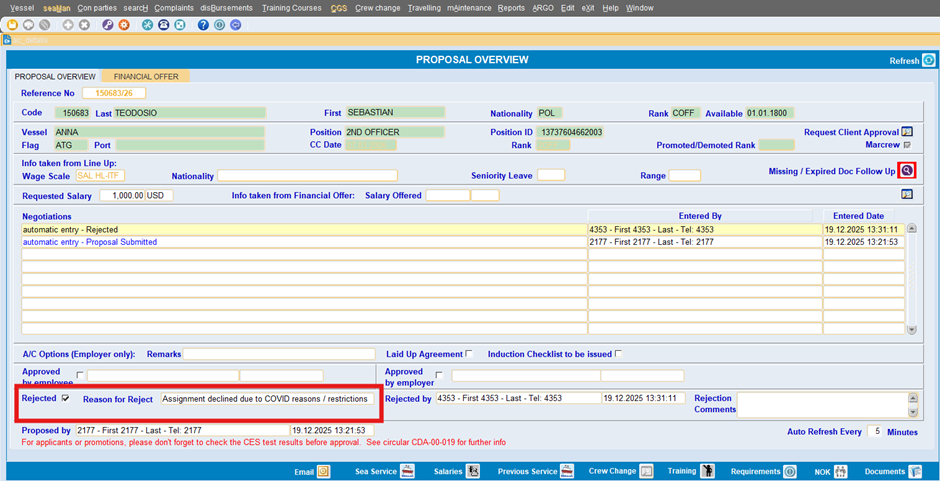
- Return to Oracle → Proposal screen
Special rule:
- If the candidate is rejected by the client while still in Pending status, the entry is automatically deleted in Argo.
5.2 Revoking Promotion or Termination Requests
To revoke:
- Open Argo → Crew Approvals Grid
- Delete the request directly using the delete icon

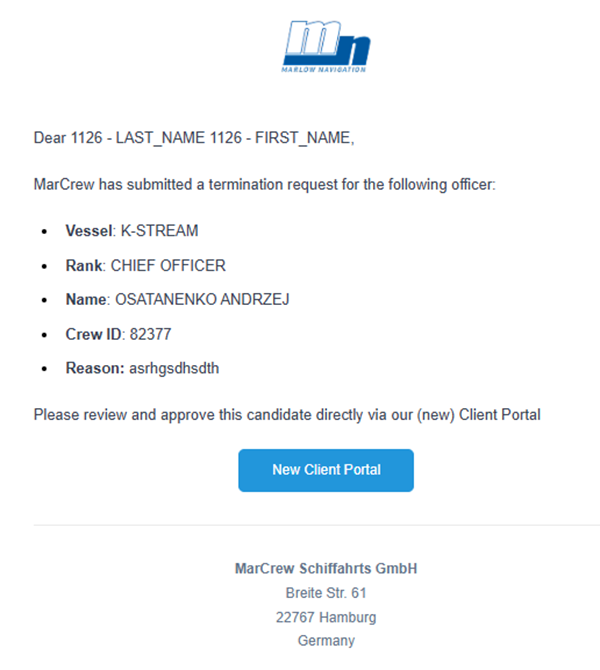
- A revocation email is automatically sent to relevant parties
6. Notes & Best Practices
- Always ensure an active Proposal/Employment Offer exists before attempting RCA.
- If the RCA button is disabled in Oracle, check eligibility criteria.
- Include clear reasons for promotions and terminations to help clients evaluate quickly.
- Monitor the Crew Approvals Grid daily for client decisions.
- Avoid duplication — do not create multiple requests for the same action.
7. Summary Table
| Request Type | Eligibility Statuses | Initiation | Revocation | Client Notification |
|---|---|---|---|---|
| New Officer Candidate | 1, 5, 6 | Oracle → Argo or Argo directly | Oracle (auto‑deletes if still pending & rejected) | Auto email |
| Promotion | 0, 1, 5, 6 | Oracle → Argo or Argo directly | Argo (delete entry) | Auto email |
| Termination | 0 | Oracle → Argo or Argo directly | Argo (delete entry) | Auto email |
8. Contact & Support
For help with Oracle or Argo access, or if a request cannot be submitted:
- Contact the IT Support Team
- Provide vessel name, seafarer name, and a screenshot where possible